Accelerator Card Local Model Replacement Guide
Beelink accelerator card models run local models through llama.cpp specially adapted for the accelerator card. With the adapted large model, you can leverage the accelerator card's NPU.
This tutorial uses a Beelink accelerator card model as an example and walks you through switching local models step by step.
This tutorial applies to Beelink accelerator card models.
1. Download the Model
llama.cpp uses GGUF-format model files. To use the NPU of the accelerator card, you must use a model adapted for the card. With the device online, you can quickly search for adapted models with the following command:
/opt/llama/bin/model-cli query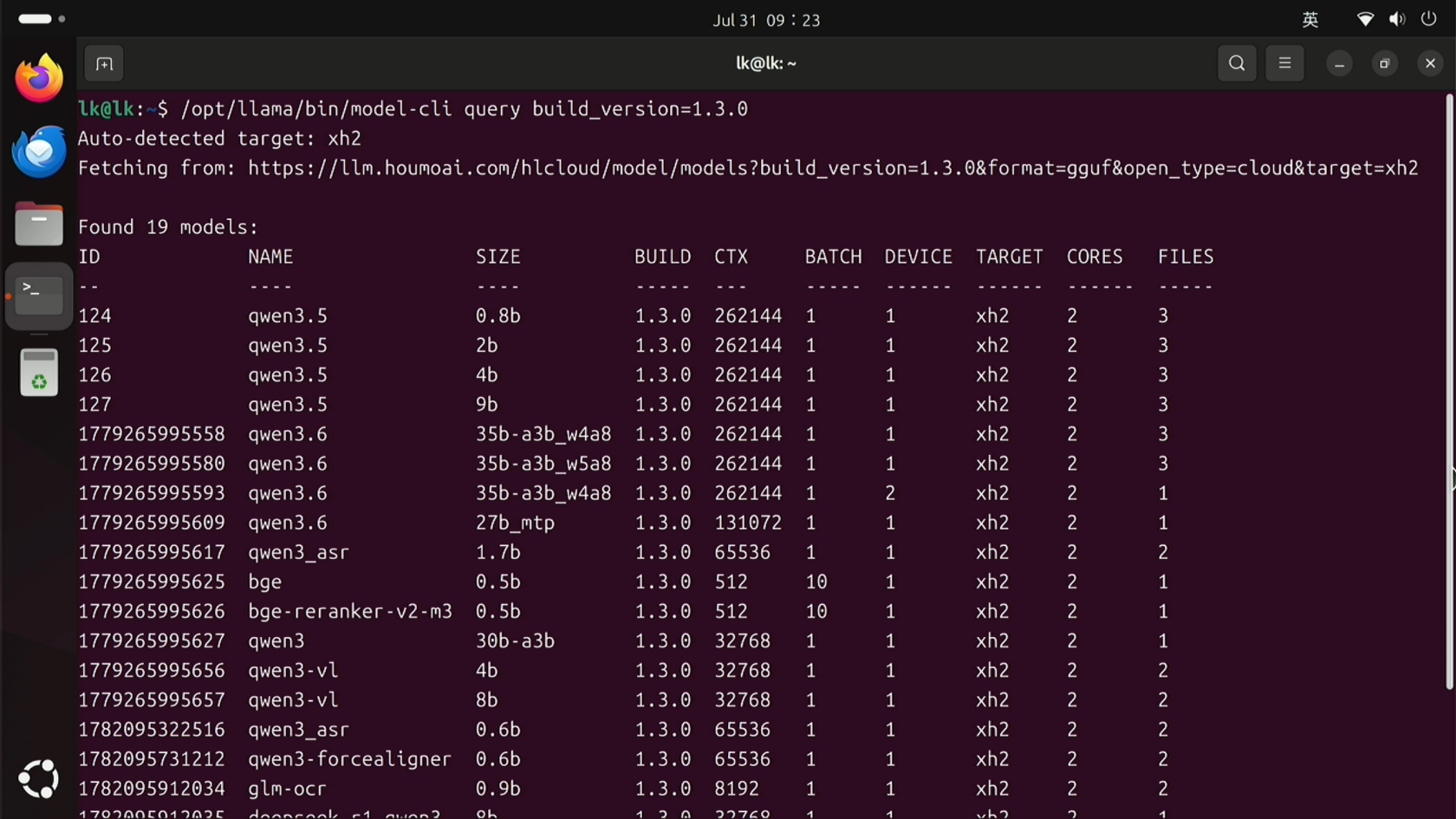
Here we choose the Qwen3.6-35B-A3B_w4a8 quantized model, a large model suitable for common scenarios such as knowledge Q&A, text generation and document understanding, with 256K context support. Note the model ID shown before the model name: 1779265995558, then pull the model with the following command:
sudo /opt/llama/bin/model-cli pull 1779265995558Note: sudo obtains administrator privileges and asks for the user password. The password is not displayed when typed in the terminal; enter it normally and press Enter to continue.
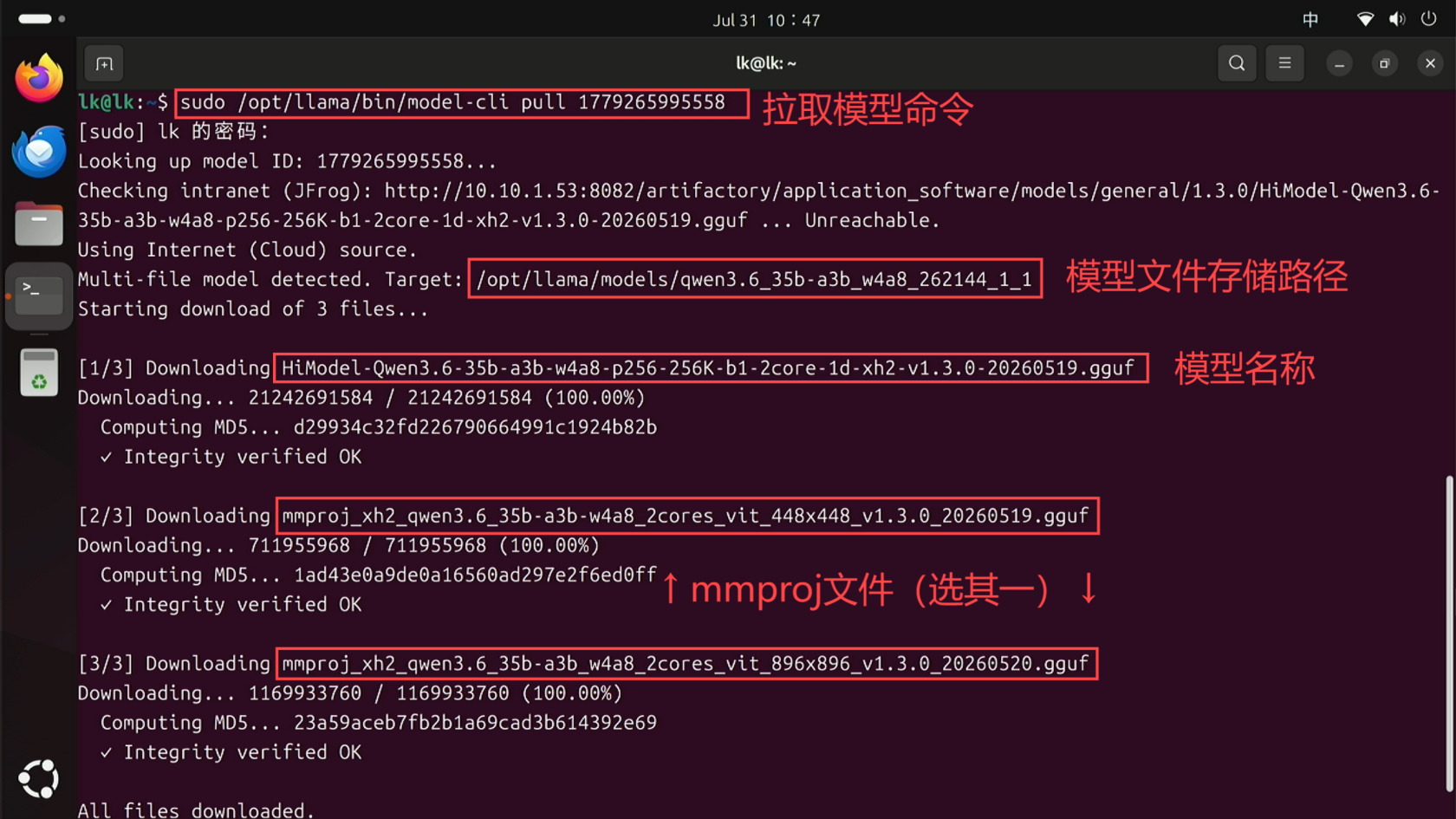
Models are stored in the /opt/llama/models/<model name> directory by default. After the download finishes, verify it by running:
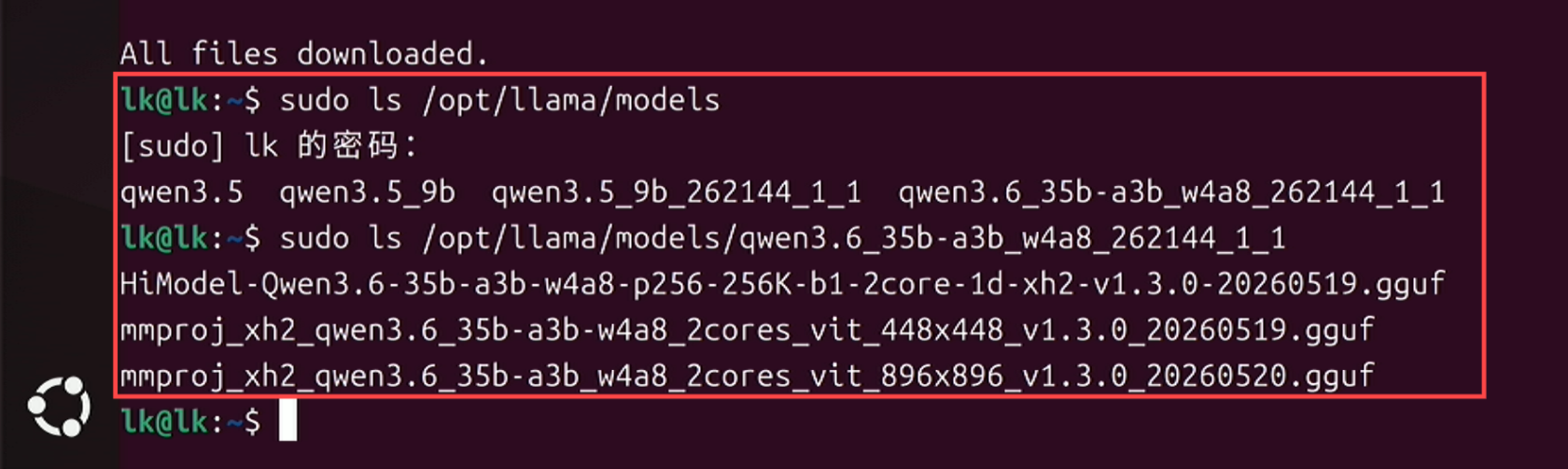
sudo ls /opt/llama/modelsIf the output contains the folder (qwen3.6_35b-a3b_w4a8_262144_1_1), the download succeeded and the model files are in this folder. Search further to verify:
sudo ls /opt/llama/models/qwen3.6_35b-a3b_w4a8_262144_1_1As shown below, the output contains three GGUF files: HiModel-Qwen3.6-35b-a3b-w4a8... is the main model file, and mmproj... is the multimodal projector, which gives the model multimodal capabilities so it can understand visual information.
2. Edit the llama Startup Script
After downloading the local model, you need to manually edit the llama auto-start script. Run:
sudo nano /etc/systemd/system/llama-server.service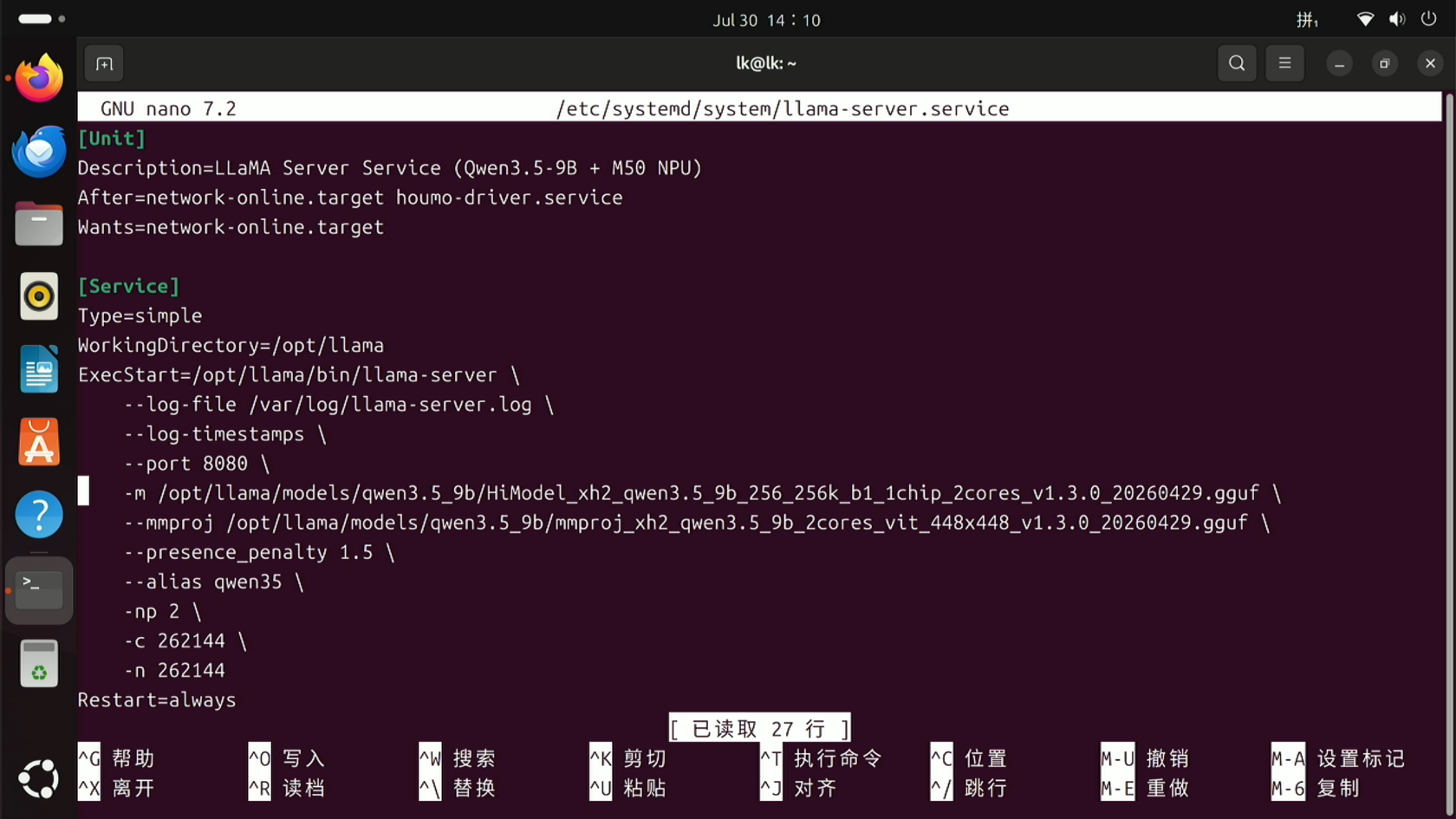
Mainly modify the ExecStart startup parameters in [Service]. Two methods for switching models are provided; modify the parameters as shown in the images:
Method 1: Switch to a specified model at startup
Use this method when you keep a single model resident and do not need to switch models frequently.
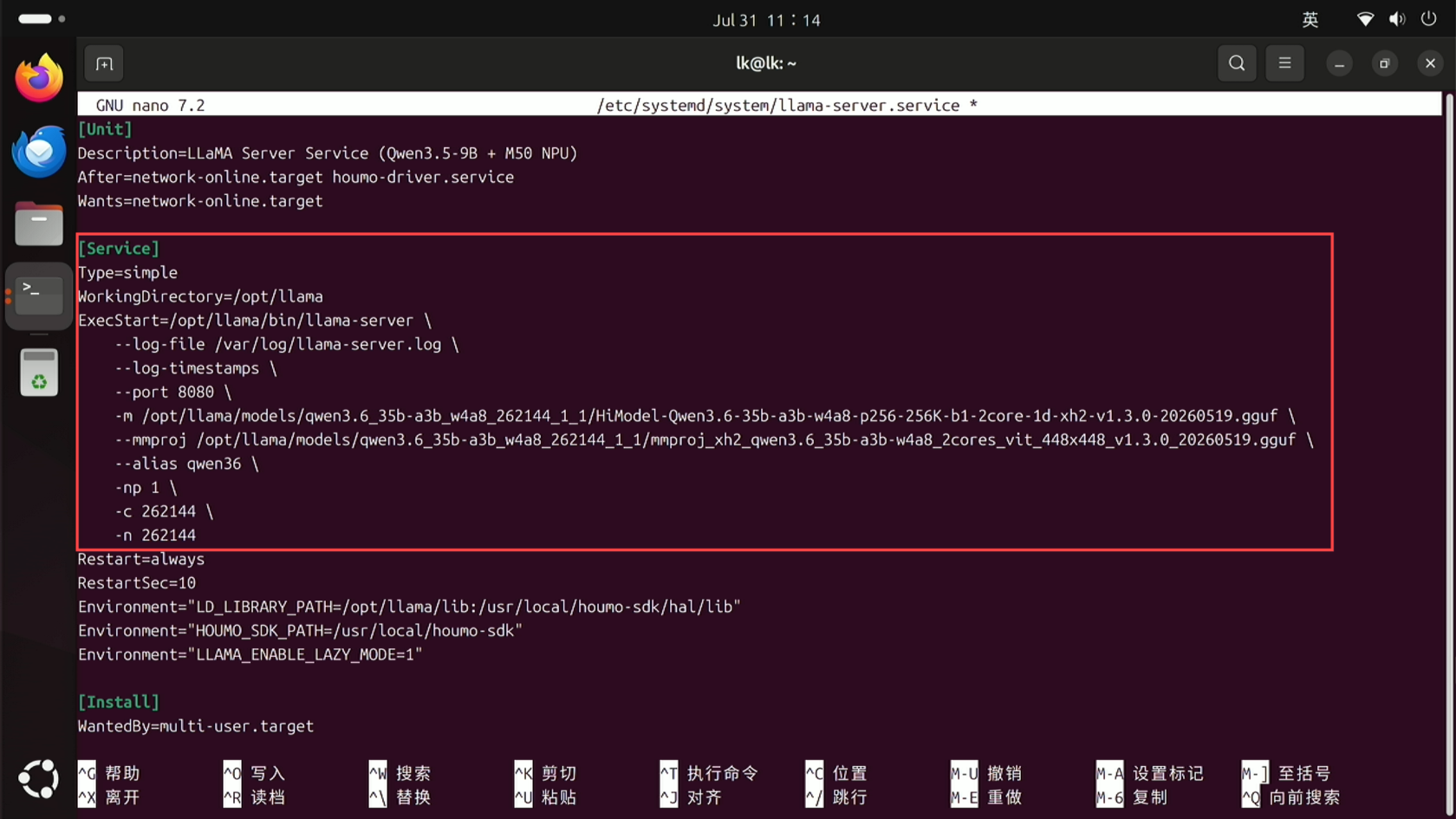
After editing, press Ctrl+X - Y - Enter to save and exit the editor.
Note:
Description=xxxat the top is descriptive text; you may change it or leave it as is. It does not affect the result.
The ExecStart startup parameters are explained below. Adjust them as needed. For more parameters, refer to the official Llama.cpp documentation:
| Startup parameter | Full name | Description |
|---|---|---|
--log-file /var/log/llama-server.log | --log-file | Specifies the log file path, persisting service logs to a file instead of terminal output only |
--log-timestamps | --log-timestamps | Adds timestamps to each log entry to help locate when exceptions occur |
--port 8080 | --port | Sets the HTTP API listening port; clients call the inference service via http://IP:8080 |
-m /opt/llama/models/qwen3.6_xxx.gguf | --model (-m) | Specifies the path of the GGUF large model file to load |
--mmproj /opt/llama/models/mmproj_xxx.gguf | --mmproj | Specifies the path of the GGUF multimodal projector file to load |
--alias qwen36 | --alias | Sets a custom model alias; OpenAI-compatible API requests can use the alias directly instead of the full model file name |
-np 1 | --parallel (-np) | Maximum number of concurrent sessions, limiting how many inference requests the service processes at once |
-c 262144 | --ctx-size (-c) | Total context window size; the current configuration supports 256K context (upper limit of conversation history + input + output tokens) |
-n 262144 | --n-predict (-n) | Maximum number of tokens generated per request; must not exceed the context window size |
Note: mmproj is only supported by multimodal large models; text-only models cannot use the mmproj file.
Method 2: Routing mode, load models on demand
Use this method when you have multiple models and need to switch between them frequently.
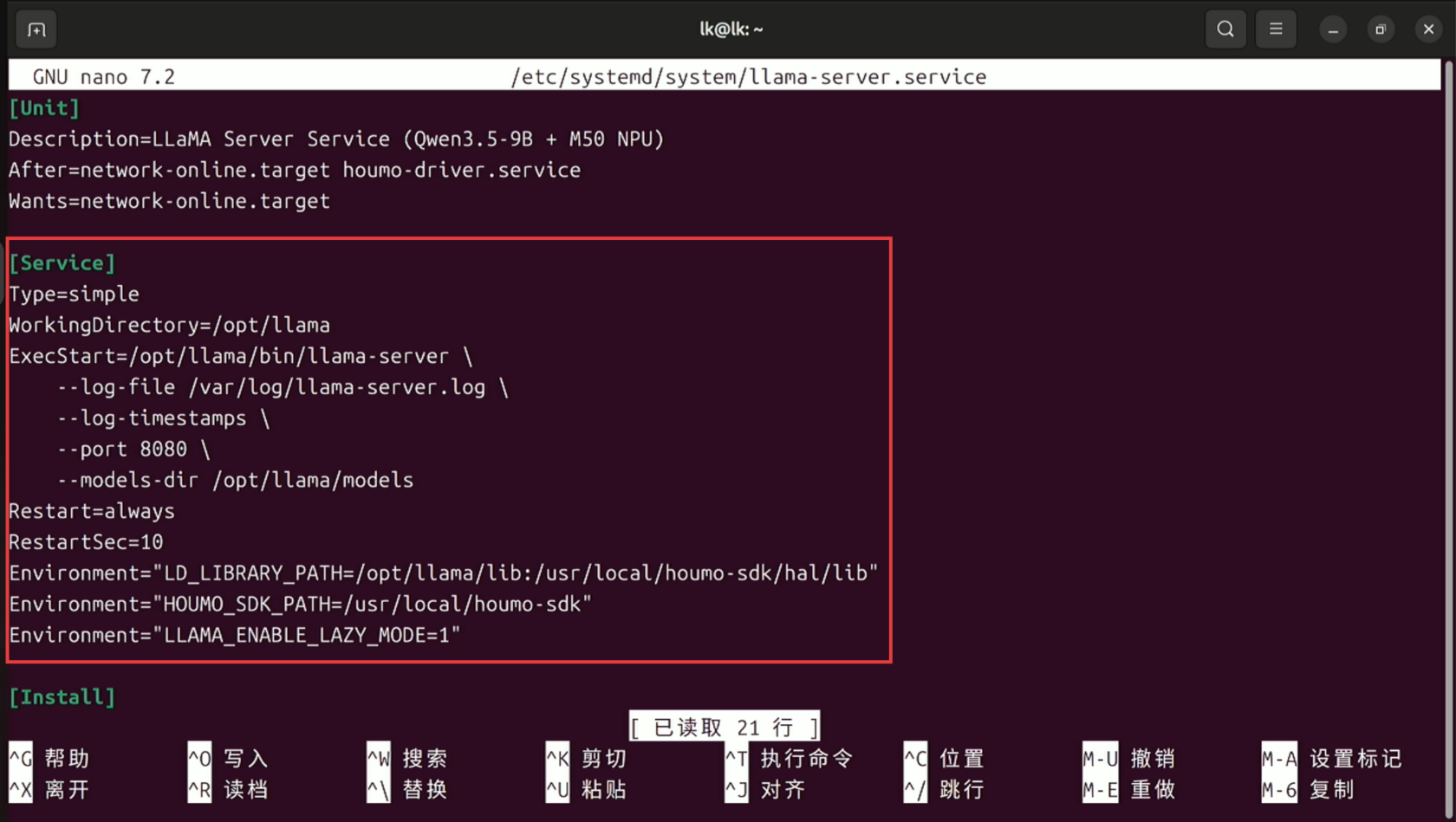
After editing, press Ctrl+X - Y - Enter to save and exit the editor.
Note:
Description=xxxat the top is descriptive text; you may change it or leave it as is. It does not affect the result.
The ExecStart startup parameters are explained below. For more parameters, refer to the official Llama.cpp documentation:
| Startup parameter | Full name | Description |
|---|---|---|
--log-file /var/log/llama-server.log | --log-file | Specifies the log file path, persisting service logs to a file instead of terminal output only |
--log-timestamps | --log-timestamps | Adds timestamps to each log entry to help locate when exceptions occur |
--port 8080 | --port | Sets the HTTP API listening port; clients call the inference service via http://IP:8080 |
--models-dir /opt/llama/models | --models-dir | Routing mode; scans all GGUF files in the directory; API requests specify the model field for on-demand hot switching |
--models-max 1 | --models-max | Keeps only 1 model resident at a time (automatically unloads on switch to avoid insufficient memory) |
3. Verify the New Model Is Enabled
Using Method 2 as an example, after editing and saving the llama startup script, restart the service with the following commands, or simply reboot the system:
sudo systemctl daemon-reload
sudo systemctl restart llama-server
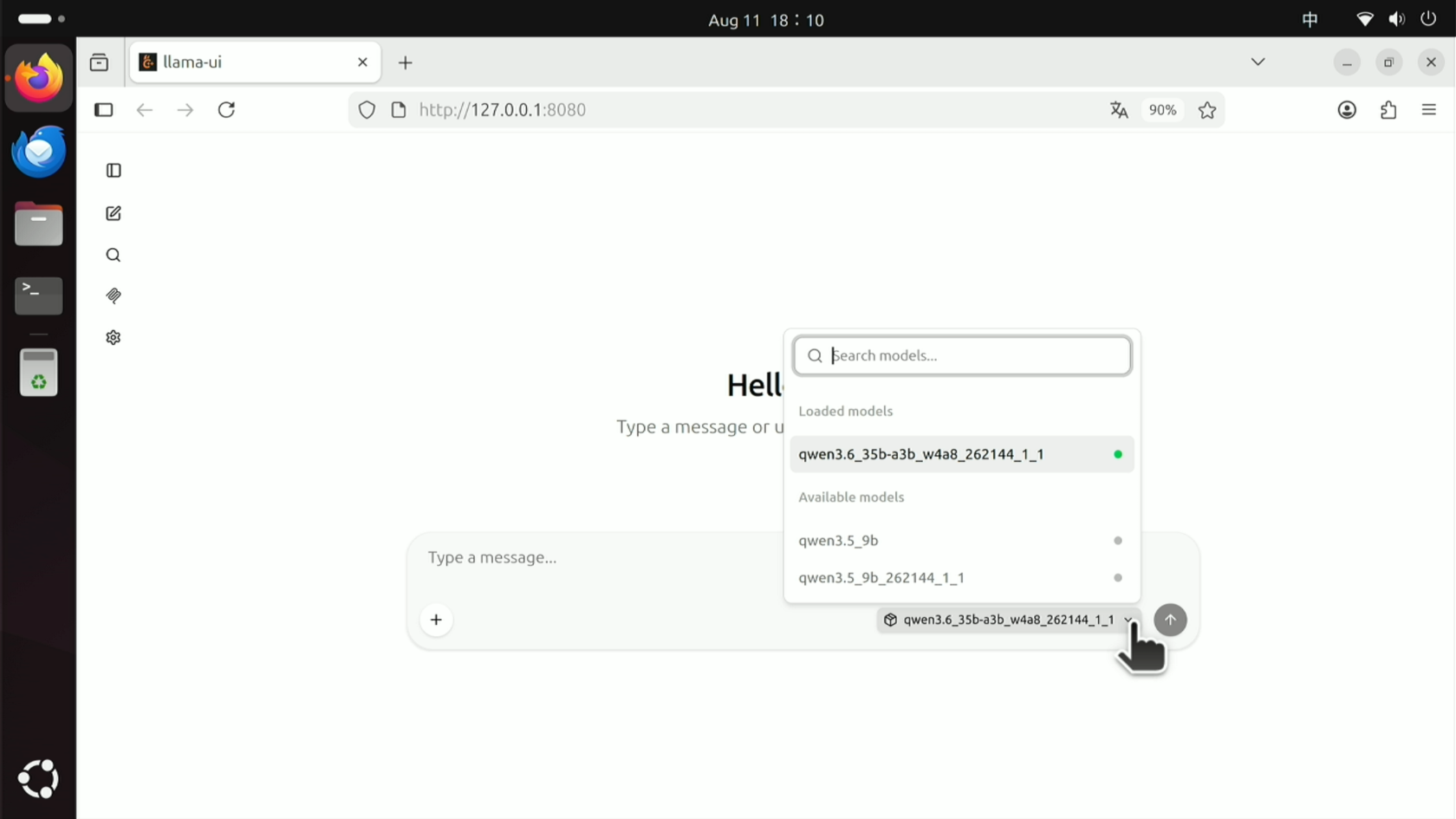
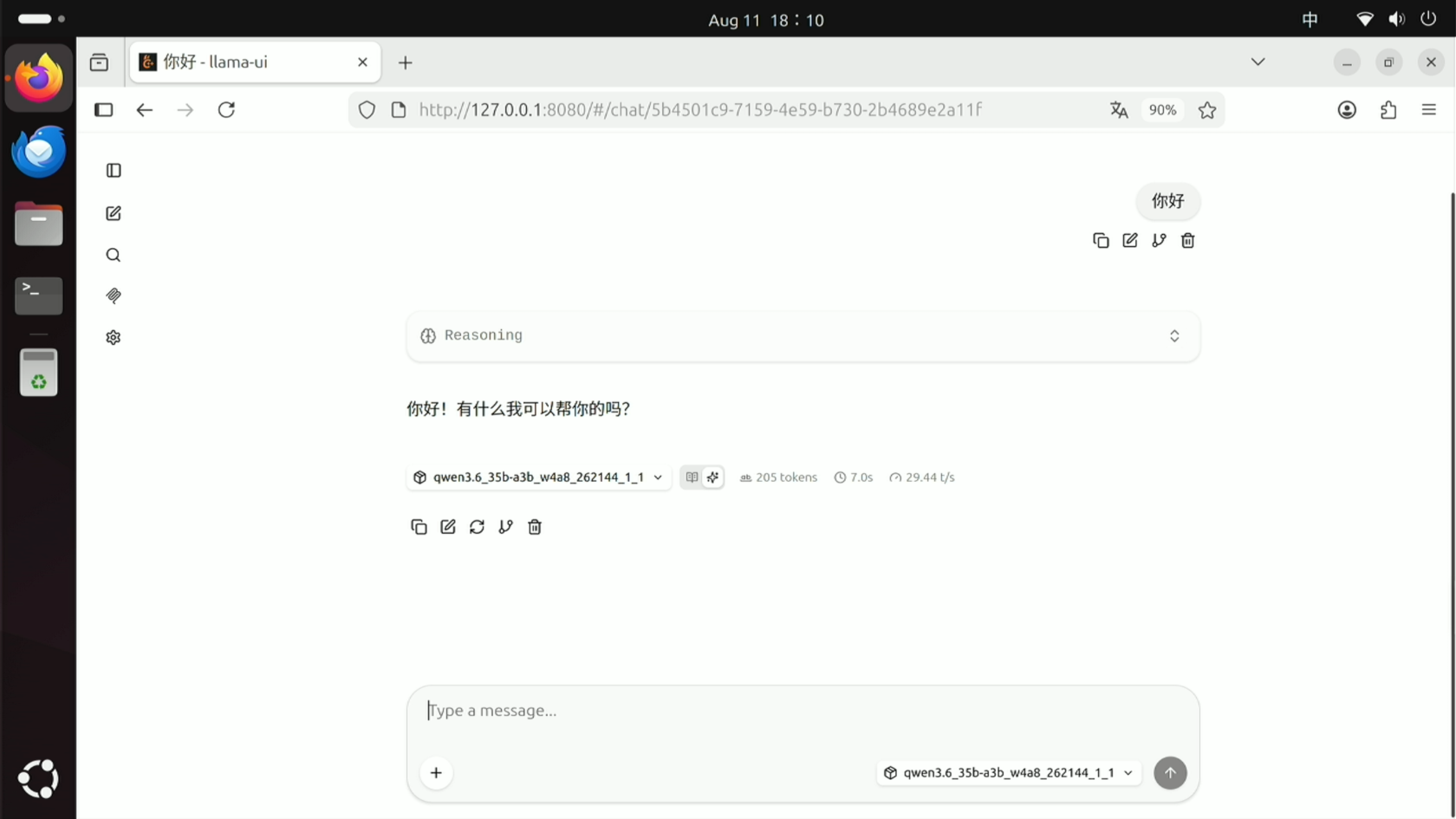
After the restart, open 127.0.0.1:8080 in a browser, click the model name, and you will see multiple models to choose from. Select the model you want to load and wait for it to finish loading, then say hello to confirm the model works. If you get a reply, the switch was successful.
4. Switch the New Model in OpenClaw
Note: OpenClaw versions released after 2026.6.11 may fail when connecting to local inference backends such as llama.cpp / vLLM / LM Studio. Do not upgrade OpenClaw for now; wait for the official fix from the OpenClaw team.
Once the new model is ready, you also need to switch the default model in OpenClaw. Open a terminal and run:
openclaw config- Select Local - Model.
- Then select vLLM.
- Change the vLLM base URL to
http://127.0.0.1:8080/v1. - Enter
sk-localas the vLLM API Key (any value is accepted). - Enter the model name shown on the web page in the previous step as the vLLM model.
- Press Enter, then press Enter again.
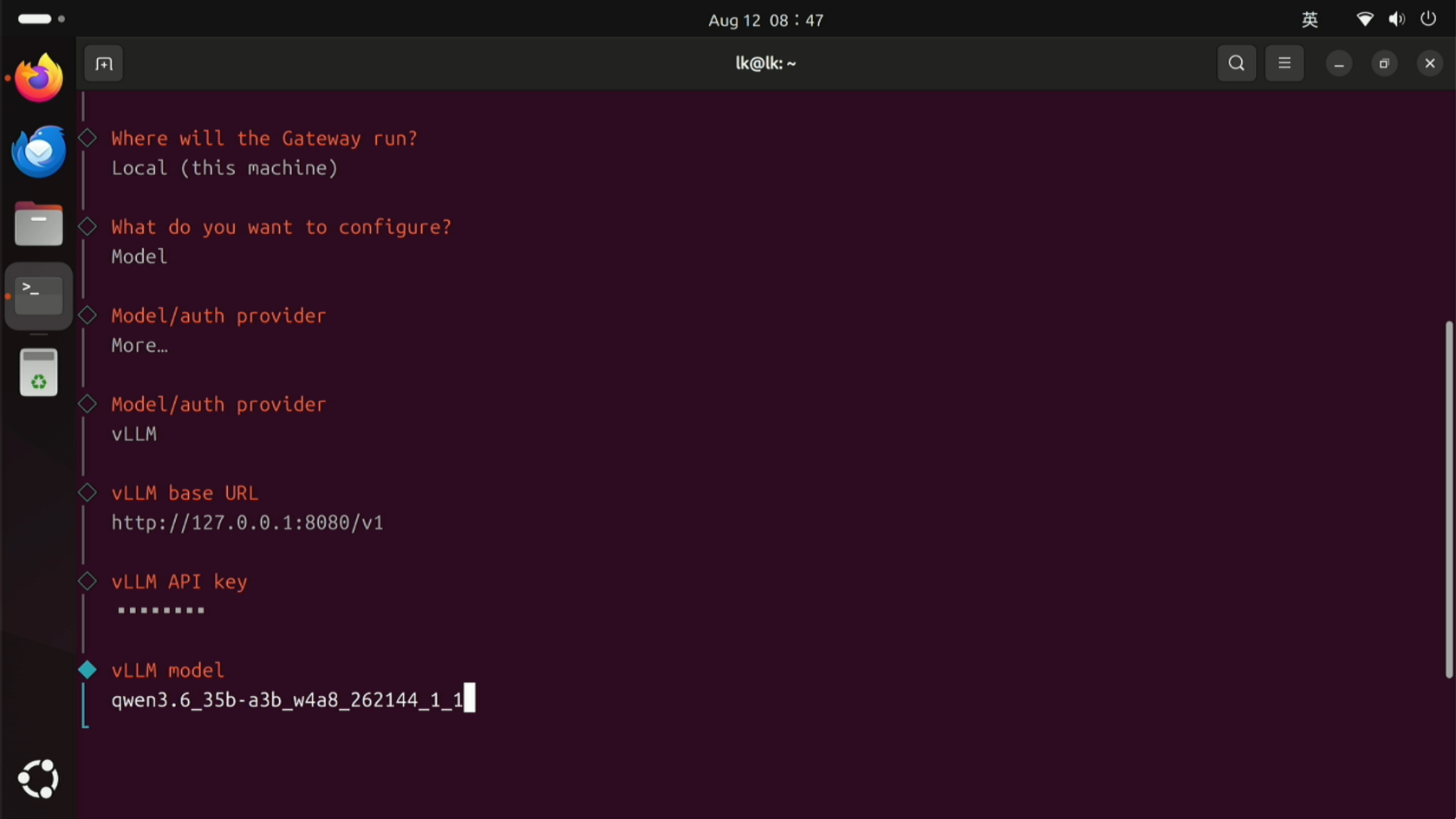
After this, move to Done and press Enter to finish the configuration.
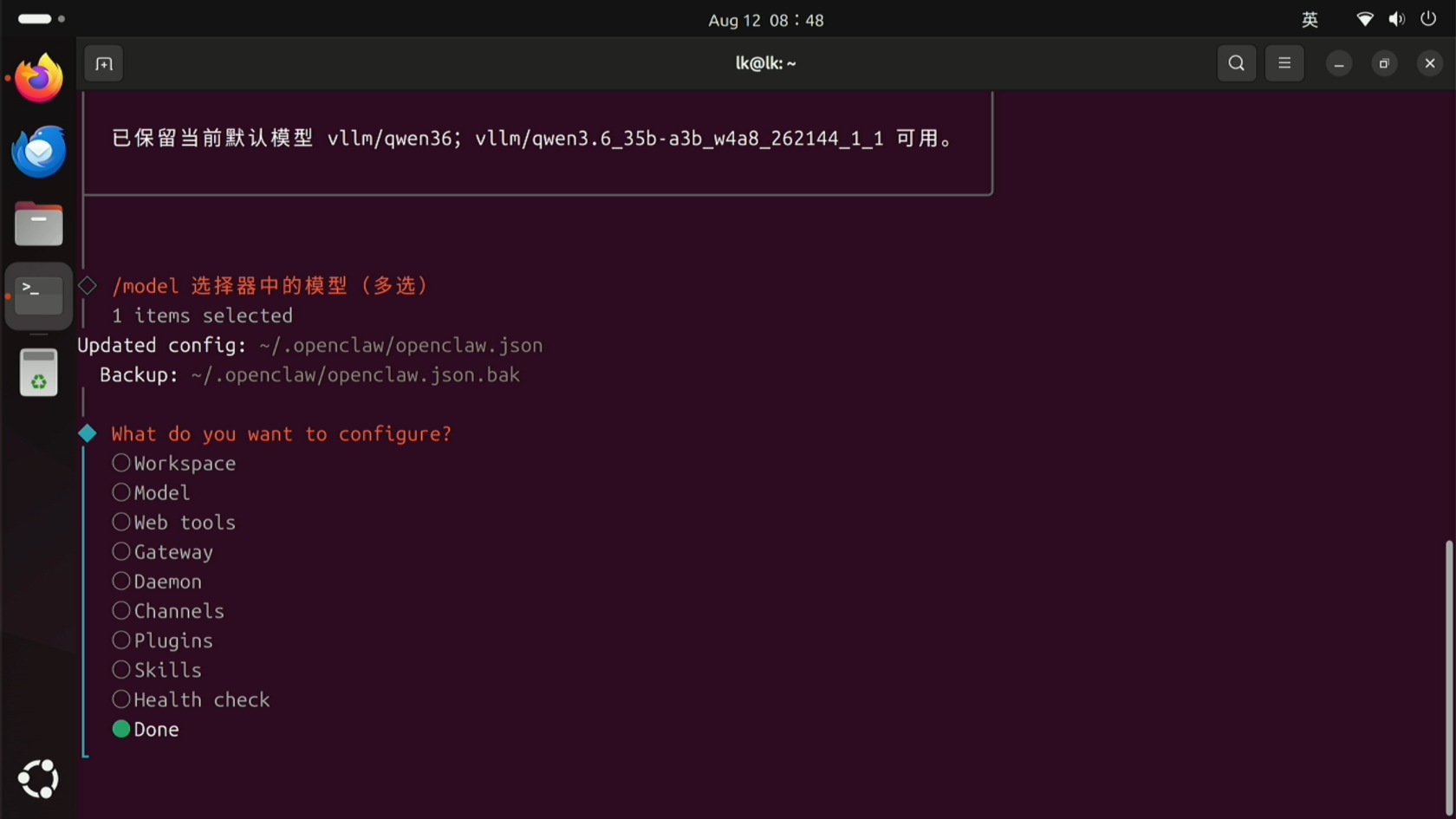
After finishing the configuration, restart the OpenClaw Gateway to apply the changes. Run:
openclaw gateway restartAfter the restart, you can use OpenClaw with the new model.
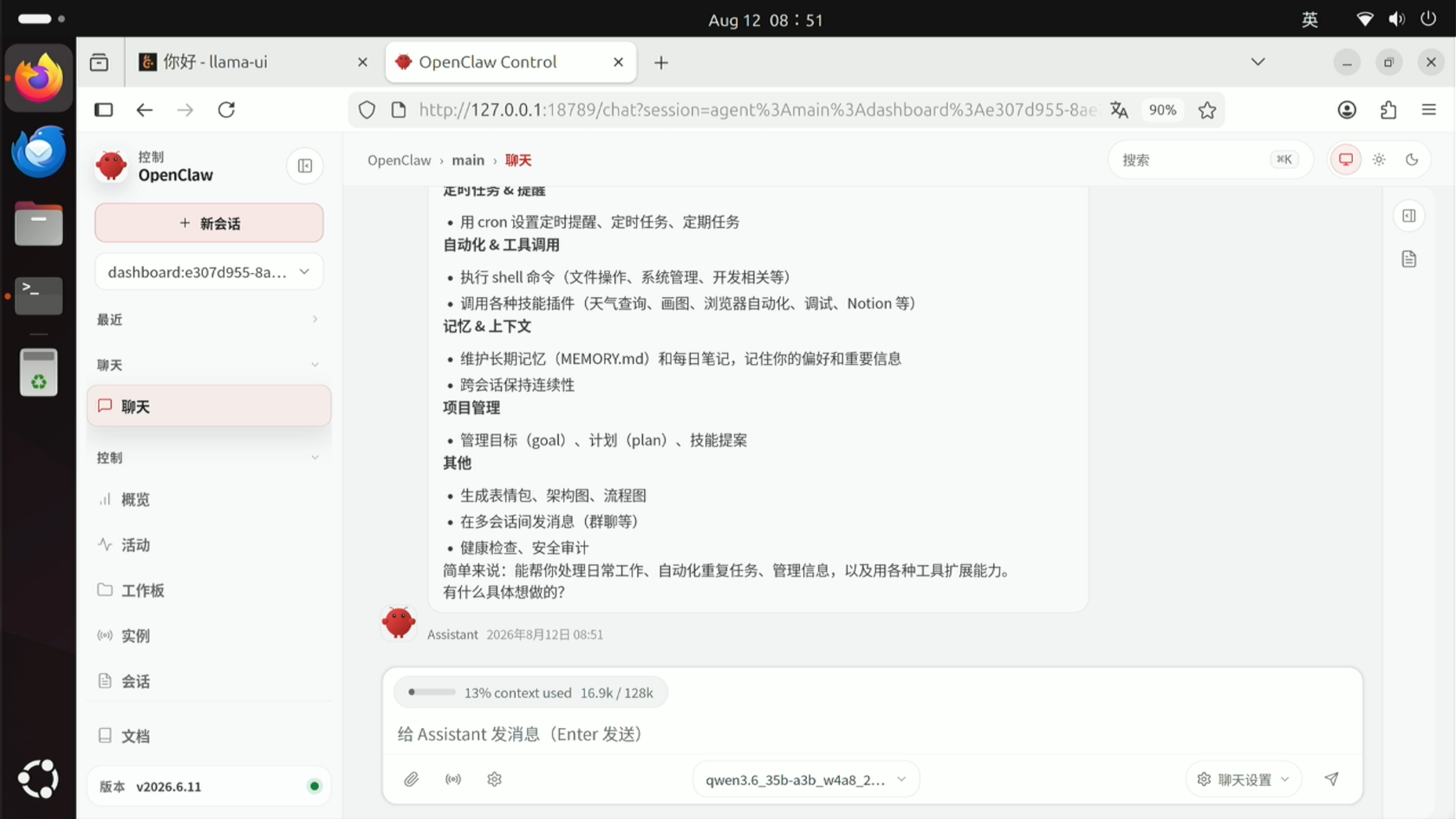
5. Switching Between Models
After configuring the new model, if the previous model was not unchecked, it is automatically kept as a backup model. You can query the available model list with the following command:
openclaw models listYou can switch the default model from the terminal without restarting the Gateway. Run:
openclaw models set <model name>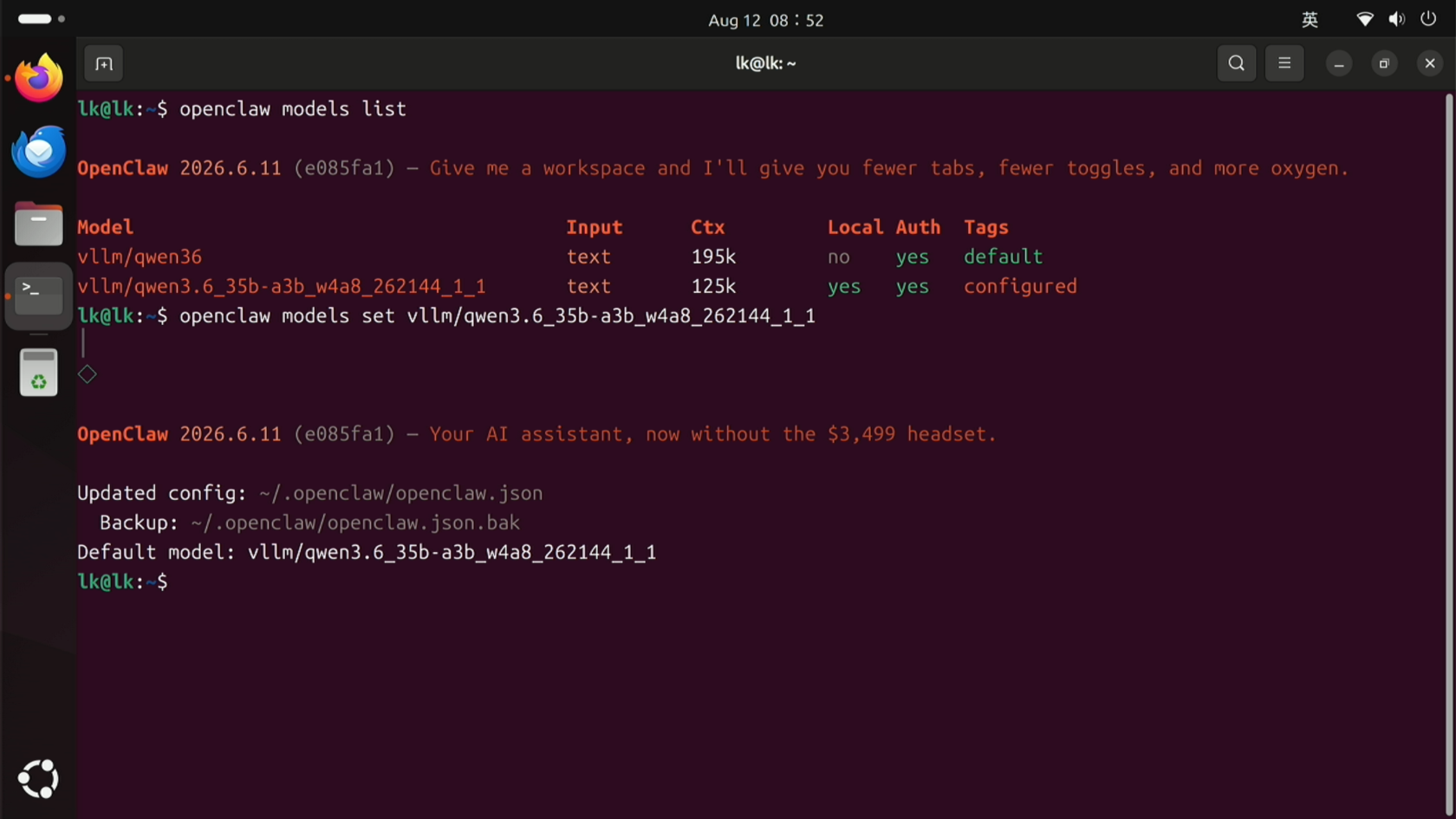
To switch models temporarily, reply with /model <model name> in the conversation with OpenClaw for a quick switch without restarting.
Tips: If you frequently use model-cli commands to query and download models, add the following command to your environment variables to simplify it. Afterwards you can omit /opt/llama/bin and use model-cli <command> directly:
echo 'export PATH="$PATH:/opt/llama/bin"' >> ~/.bashrc
source ~/.bashrc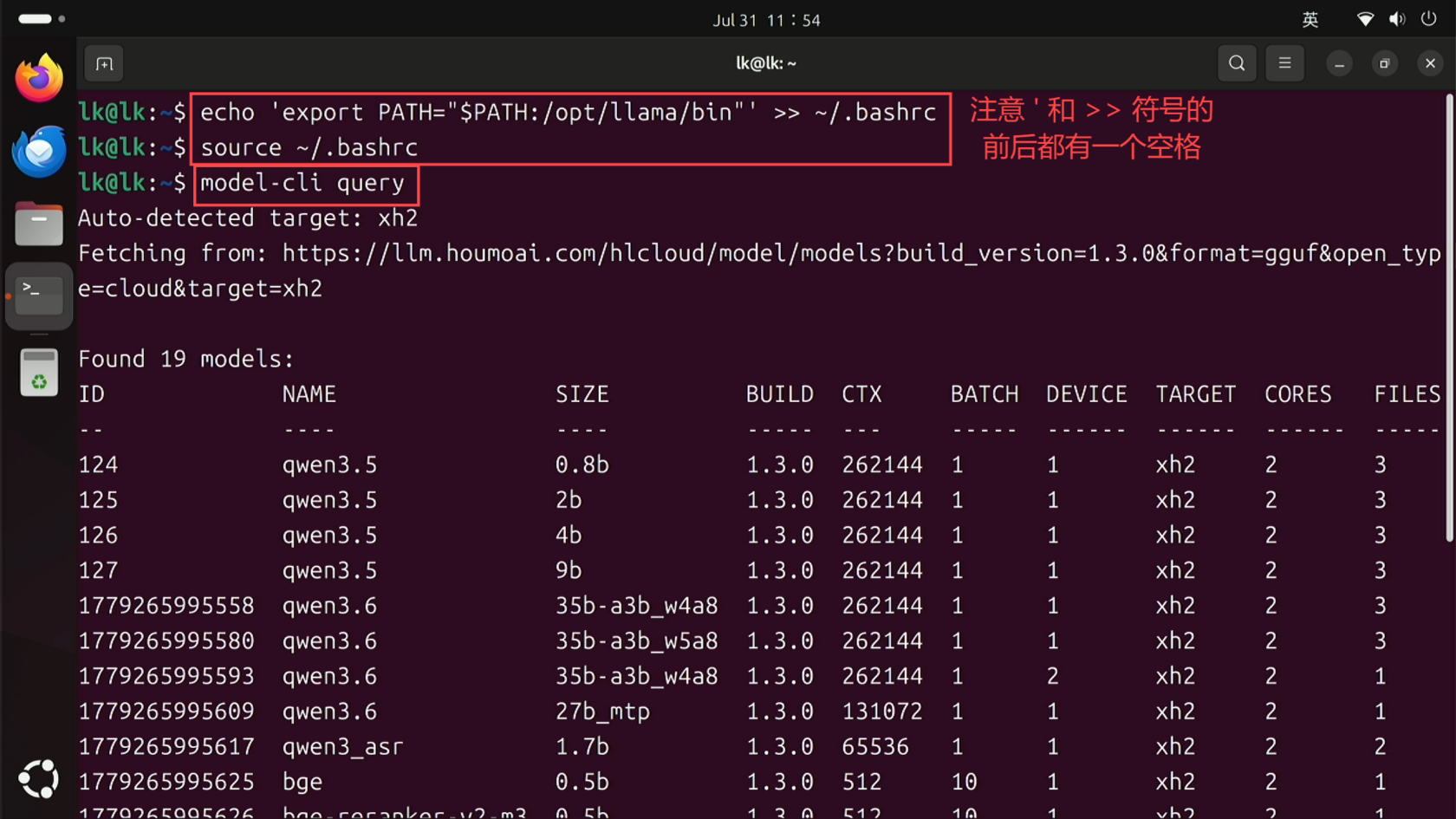
Compiled from the Beelink official knowledge base for your reference.